In this episode we once again focus on the individual look of your ChessBase´26 training. In episodes 11 and 17 we already showed how you can create pleasant views with multiple windows and your own customized layout. In this episode we turn to another option in this context:
The small "Style" option in the top right of the main view gives you several ways to adjust icons and background colors to your needs:
 So simply click on the downward arrow next to "Style," and the menu shown — which is preset to "White" — will open:
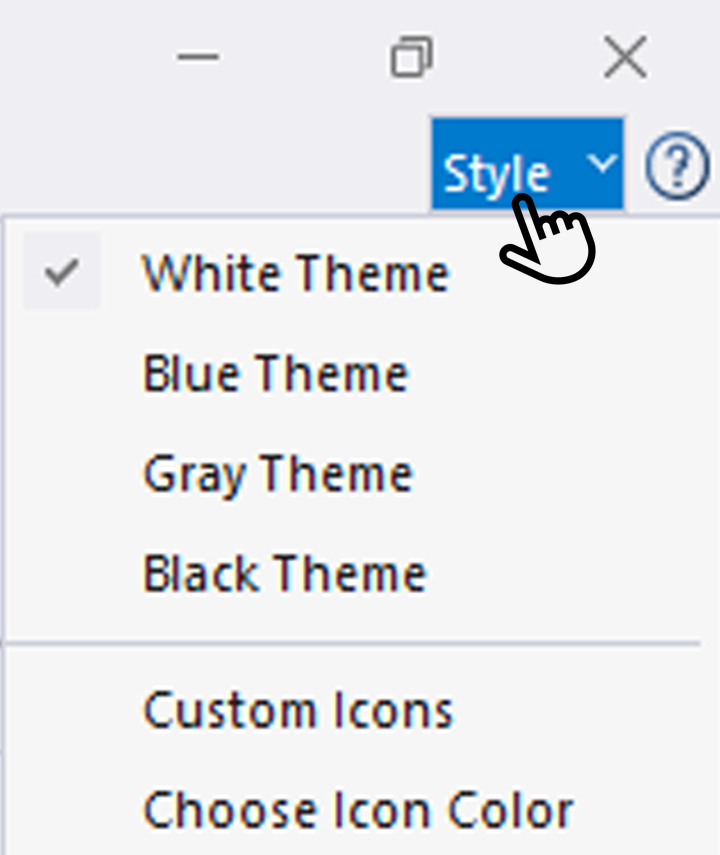
Take a look at the overall view and compare it with the following displays:

In the view above, the color has already been changed to "Blue," and you can see the difference compared to the colors shown earlier. It becomes even clearer when you switch to "Gray"…

... or to "Black":

As you can already see in the examples above, it’s not only the bar background that changes in different ways when you adjust the colors, but also the selection icons. If you don’t really like the automatically suggested colors, you can also set them yourself. Enable or disable "Custom Icons," or go directly to the "Pick Icon Color" option, and this menu window will open:
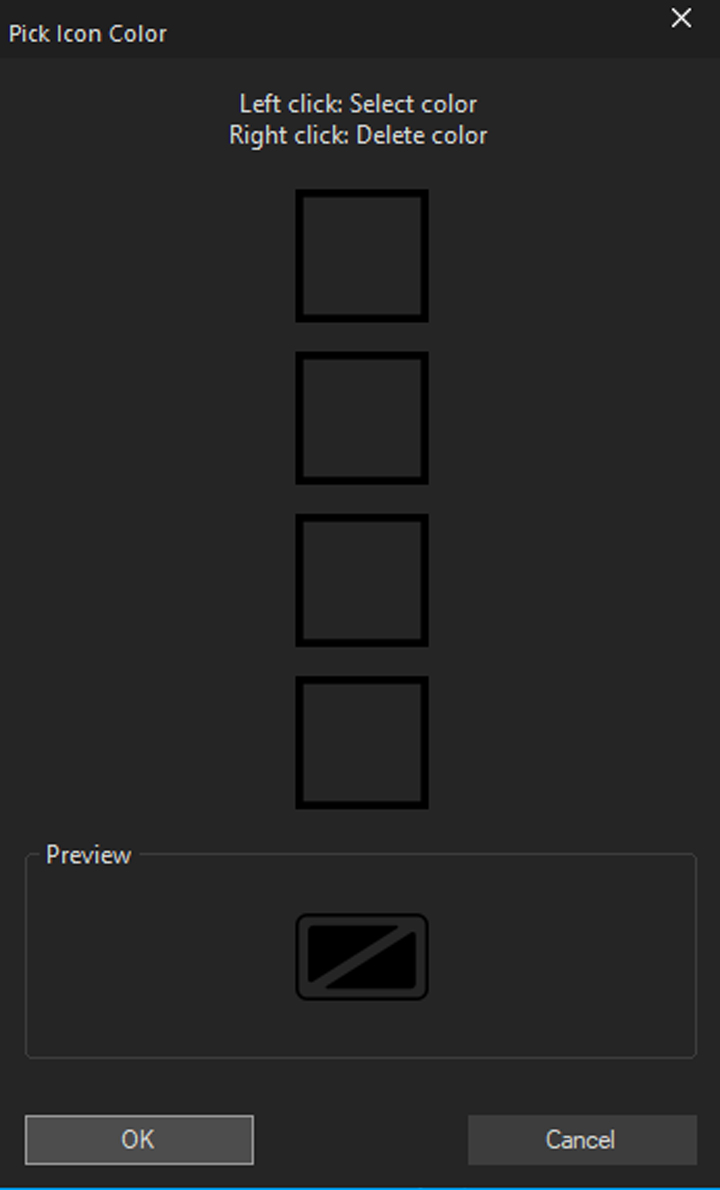
Here you can now put together your color combination square by square. When you click on each square, the following field opens for precise color selection:
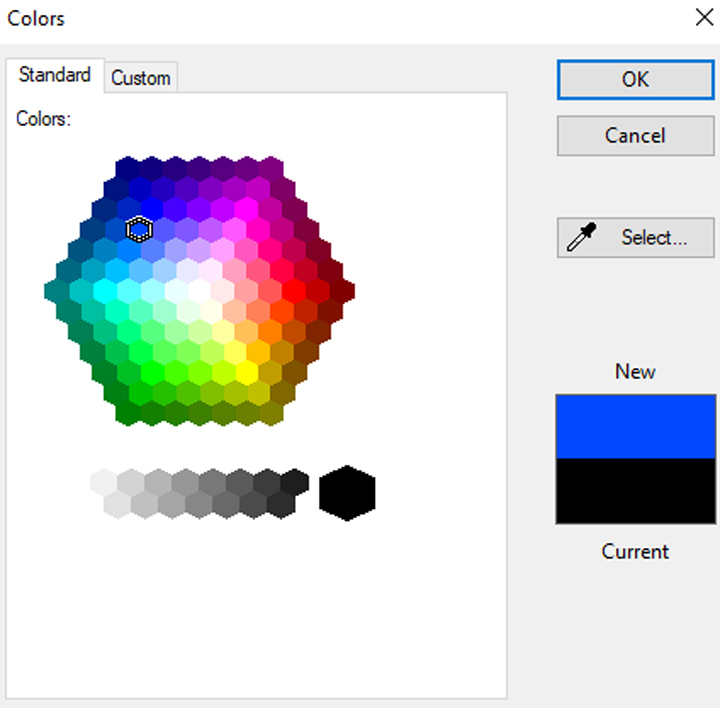
Here you can also choose between "Standard" and "Custom," and then either select the shades directly or use the eyedropper to pick a color from anywhere on the screen.
After a few selection steps, the result might look like this, for example:
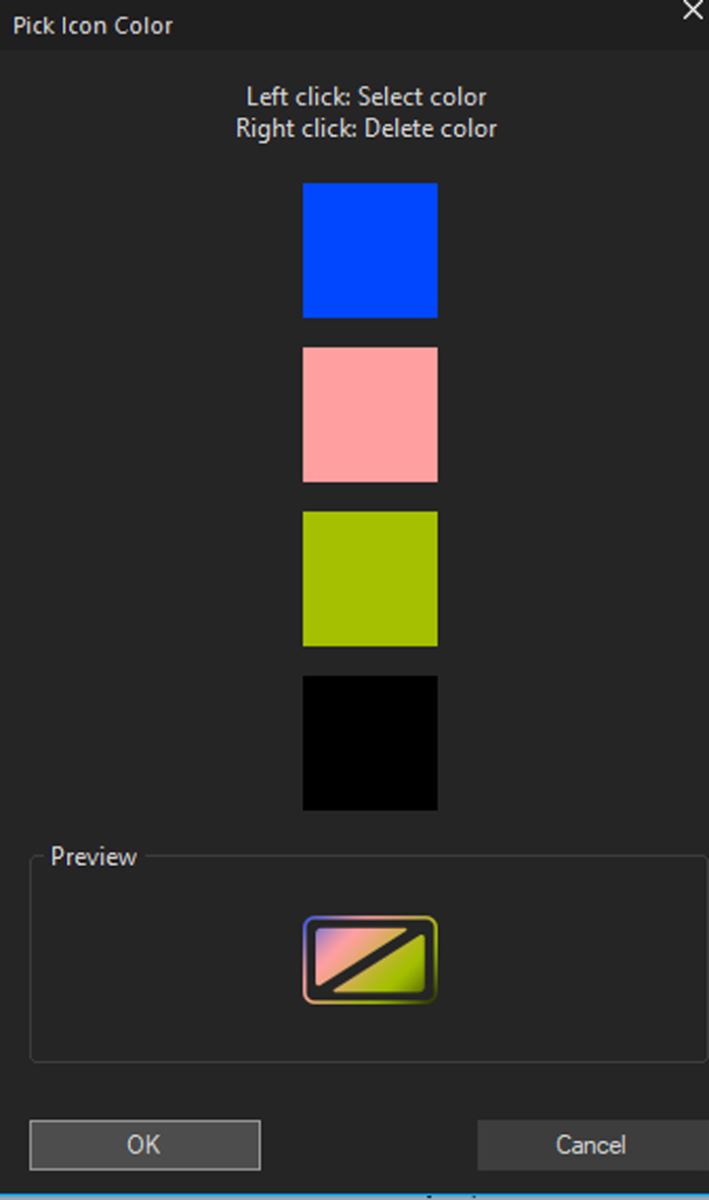
And after the final OK, this example produces a screen like this:
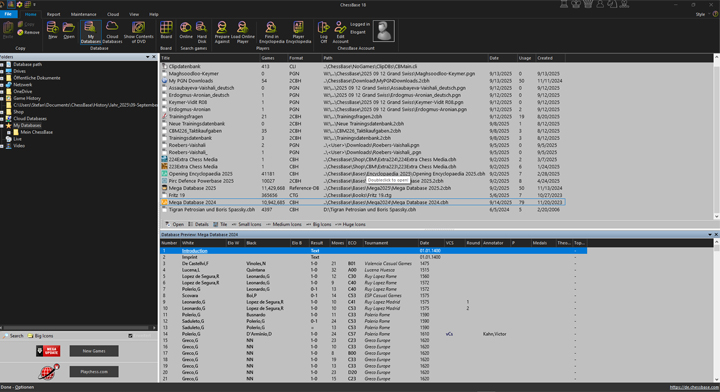
If you come to the conclusion that you actually liked it better the way it was at the beginning, simply switch back to "White" and deactivate the "Custom Icons" window.
Conclusion
Some may see this option as just a gimmick, while for others it is very important to set everything up so that they feel comfortable with their ChessBase´26. And that’s exactly the nice thing about this program – everyone can use it in their own individual way, take advantage of different options, and make settings here and there that may seem unnecessary to another user. As so often: just try it out – you can’t break anything, and everything can always be reset! Have fun with your very own style ...
------
ChessBase has developed over decades to become what it is now in its 2026 version. The program has countless options, which we will present here in small portions – so you can design your interface for pleasant daily use and keep learning about new options and how to use them to get the most out of ChessBase´26 and save time.
We hope that this tip will help you to have more fun and be more successful when using ChessBase´26. You can find more tips and hints on our support pages and FAQ pages.
All parts of the series and more links:
2.5 million games
The new Corr Database 2026 is the large ChessBase collection of correspondence games from the period from 1804 to 2025. With more than 80,000 tournaments and over 2.5 million correspondence games, the Corr 2026 is a must for all Correspondence chess fans.
- Beginner´s Tips Part 1: Entering and Saving Your Own Games
- Beginner´s Tips Part 2: Insert variations and add engines
- Beginner´s Tips Part 3: Insert variations from references and engines
- Beginner´s Tips Part 4: Figurines and Colours
- Beginner´s Tips Part 5: Annotations
- Beginner´s Tips Part 6: Quick access toolbars and variation hierarchies
- Beginner´s Tips Part 7: Organising databases!
- Beginner´s Tips Part 8: Together what belongs together...!
- Beginner´s Tips Part 9: Tactical Analysis
- Beginner´s Tips Part 10: Standard Layout or Custom Layout
- Beginner's Tips, Part 11: Multitasking with several windows
- Beginner's Tips, Part 12: Arrows and marks
- Beginner's Tips, Part 13: Powerbooks and Powerbases
- Beginner's Tips, Part 14: Save resources with remote engines
- Beginner's Tips, Part 15: Setting up and analysing positions
- Beginner's Tips, Part 16: Setting up and analysing positions (Part 2)
- Beginner's Tips, Part 17: Choosing your board design
- Beginner's Tips, Part 18: What the mouse can do!
- Beginner's Tips, Part 19: Find model games for training
- Beginner's Tips, Part 20: Award medals to your best games!
- Beginner's Tips, Part 21: Maximum Training Effect with the Power Tool "Replay Training" (Part 1)
- Beginner's Tips, Part 22: Maximum training effect with the ‘Replay Training’ power tool (Part 2)
- Beginner's Tips, Part 23: Stay up to date with program updates
- Beginner's Tips, Part 24: Always get the latest games via update
- Beginner's Tips, Part 25: Customizing your view – how to see what matters
- Beginner's Tips, Part 26: Null moves: The art of doing nothing
- Beginner's Tips, Part 27: Creating Effective Training Material (Part 1)
- Beginner's Tips, Part 28: Creating Effective Training Material (Part 2)
- Beginner's Tips, Part 29: Creating Effective Training Material (Part 3)
- Beginner's Tips, Part 30: Use "Folders"
- Beginner's Tips, Part 31: Endgame expert with the "LiveBook"
- ChessBase´26: A Players Guide (1)
- ChessBase´26: A Players Guide (2)
- ChessBase´26: A Players Guide (3)
- ChessBase´26: A Players Guide (4)
- ChessBase´26: A Players Guide (5)
- Videos:
Matthias Wuellenweber on all new functions for ChessBase 26
ChessBase 26 - The interview with Matthias Wuellenweber
Matthias Wuellenweber - The Complete Guide to the ChessBase 26 Opening Report
Matthias Wuellenweber - The Complete Guide to the ChessBase 26 Monte-Carlo-Analysis
Dorian Rogozenco: How a GM uses the new ChessBase 26 opening report
Dorian Rogozenco: How a Grandmaster Uses the New ChessBase´26 Monte-Carlo Analysis
The free app from ChessBase! ChessBase Mobile has everything you need as a chess player on the go:
access your chess data in cloud databases - and 13 million games.
ChessBase Mobile has everything you need as a chess player on the go:
- Access the ChessBase online database - with more than 13 million games: search for players, positions, openings etc.
- Save your own games and analyses in cloud databases
- Synchronise your personal databases across all your devices
- Analyse your games with the built-in engine
- Live opening book: use the most comprehensive and up-to-date statistics for every opening position
- Access your opening repertoire in the cloud: create and edit your personal opening repertoire
- 300 opening overviews, with repertoire suggestions: get started with new systems!
- Practise opening variations with three modes.
- Advanced notation: add comments, symbols, variations, arrows and markings to your games
- Advanced sharing options: share games and positions via link, image, GIF, FEN or QR code
- PGN compatibility: upload and download games or databases as PGN files



















.jpeg)