Position Setup
To get a position on the ChessBase board, you must first open the "Position Setup" menu. The easiest way to do this is to simply press the s key.
You can also go to the "Board" menu item in the ChessBase start window. When you click there, a new window will open. Here, go to "New game" and click on the small arrow at the bottom right:
 Your personal chess trainer. Your toughest opponent. Your strongest ally.
With this combination, you can’t go wrong: the comprehensive chess program Fritz 20 plus the latest opening theory from Powerbook 2026! FRITZ 20 is more than just a chess engine – it’s a training revolution for ambitious players and professionals. Together with Powerbook 2026, Fritz allows you to practise openings at every level and in every area. Whether you’re taking your first steps into the world of serious chess training or already playing at tournament level: with FRITZ 20, you’ll train more efficiently, intelligently and individually than ever before!
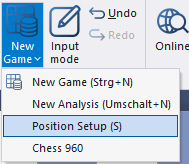
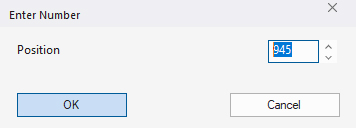
You now have the choice of starting a new game or analysis, or selecting a Chess 960 position by entering the corresponding number of the starting position:
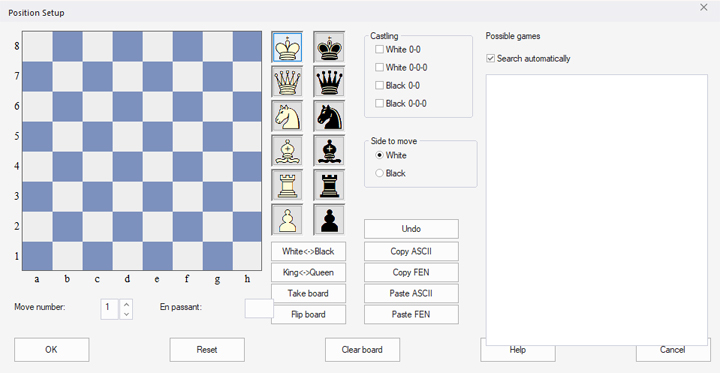
However, the main topic should of course be the selected option "Position Setup". When you click here, a window opens that you can also open by pressing the s key:
The premiere chess database with over 11.7 million games
The ChessBase Mega Database 2026 is the premiere chess database with over 11.7 million games from 1475 to 2025 in high quality.
Set up position piece by piece
Let's assume you want to practise the rather difficult endgame with king and queen against king and rook, because you had this on the board during your last tournament:
Simply click on the piece in the selection and then on the desired square on the board. Repeat this until the desired position is complete. Then click "OK" and the position will be transferred to the board. Here you can also display and view reference games for this position as usual and use the other analysis functions.
Correction
- If you put a piece on the wrong square, repeat this click and the piece will be removed again.
- If you have put the wrong piece on the desired square, select the correct piece and replace the wrong one.
For example, the following unusual position can be chosen:
The screenshot contains some information and input options that are not immediately obvious at first glance:
 EXPAND YOUR CHESS HORIZONS
Data, plans, practice – the new Opening Report In ChessBase there are always attempts to show the typical plans of an opening variation. In the age of engines, chess is much more concrete than previously thought. But amateurs in particular love openings with clear plans, see the London System. In ChessBase ’26, three functions deal with the display of plans. The new opening report examines which piece moves or pawn advances are significant for each important variation. In the reference search you can now see on the board where the pieces usually go. If you start the new Monte Carlo analysis, the board also shows the most common figure paths.
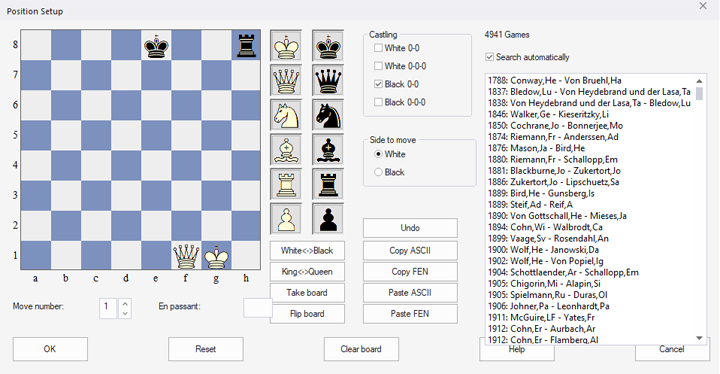
- The "Castling" field indicates that Black can still castle (provided that this is permitted in the current position). If this is no longer permitted because the king or rook has already been moved, you can remove the check mark.
- In the "Side to move" field directly below, you can select whose move it is.
- If you wish, you can also enter the current number of moves for your analysis below the board or use the options below the pieces to rotate the board or change the colour of the pieces.
- With "Take board", you can take over the position of your currently open board and change it as described above.
- "Reset" returns to the initial position, while "Clear board" provides an empty board for setting up the position.
- All games in the database are displayed in the right-hand column if the "Search automatically" checkbox is selected. This means that ChessBase 18 finds the corresponding games in the Mega Database while you are setting up the pieces. We will explain this topic in more detail in a later tutorial.
Change position
Have you analysed this endgame enough and want to change the position? No problem, just press s again and, after being asked if you want to save the analysis up to that point, the "Position Setup" window will open with the current board position. You can then add more pieces (see next diagram).
Pro tips:
 YOUR EASY ACCESS TO OPENING THEORY: Whether you want to build up a reliable and powerful opening repertoire or find new opening ideas for your existing repertoire, the Opening Encyclopaedia covers the entire opening theory on one product.
YOUR EASY ACCESS TO OPENING THEORY
Be well prepared with the new Opening Encyclopaedia 2026! Whether you want to build up a reliable and powerful opening repertoire or find new opening ideas for your existing repertoire, the Opening Encyclopaedia covers the entire opening theory on one product and is the ideal start for your opening training. Many new articles enrich the current theory with new or revisited ideas. The Encyclopaedia can help you learn openings quickly and give you a head start on your next opponent. Each article contains explanations and annotated games illustrating typical plans to deepen your understanding.
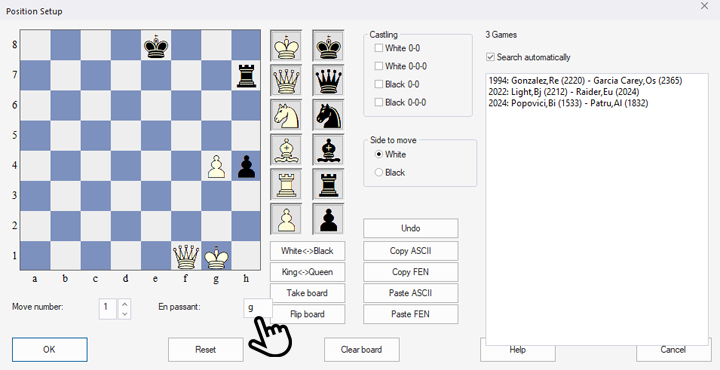
- In addition to the castling function already explained, there is also a setting option for en passant capture. In the position above, the white pawn on g4 has been added to the previous position and there are still three games in the database. If Black is to move, as set, you cannot know without knowing the course of the game whether the capture ...h4xg3 e.p. is legal in this position. Of course, it would only be legal if g2-g4 had been played immediately before. If you want to include this possibility, enter the line on which such a capture would be allowed in the "En Passant" field – logically, there is only one such possibility in each position, since White can only have moved one pawn last.
- The options "White<->Black" and "King<->Queen" allow positions to be mirrored vertically or horizontally.
- Have you ever wondered how the FEN codes that can be copied or generated on many platforms work?
With "Copy FEN" and "Paste FEN", positions from online or ChessBase diagrams, for example, can be exported and imported using FEN (= Forsyth-Edwards notation is a shorthand notation for games). The same applies to the older ASCII format, which is rarely used today and is likely to appear only in old sources.
Now we hope you enjoy analysing your positions.
------
ChessBase has developed over decades to become what it is now in its 2026 version. The program has countless options, which we will present here in small portions – so you can design your interface for pleasant daily use and keep learning about new options and how to use them to get the most out of ChessBase´26 and save time.
We hope that this tip will help you to have more fun and be more successful when using ChessBase´26. You can find more tips and hints on our support pages and FAQ pages.
All parts of the series and more links:
2.5 million games
The new Corr Database 2026 is the large ChessBase collection of correspondence games from the period from 1804 to 2025. With more than 80,000 tournaments and over 2.5 million correspondence games, the Corr 2026 is a must for all Correspondence chess fans.