My grandparents used to say: 'Too much and too little is always a problem! This Silesian proverb tells us that neither too much nor too little of something is good - we should always strive for a healthy balance. This insight is not only useful in everyday life, but also when using the stylistic devices ChessBase´26 offers. So if you want to use arrows and markings, the same applies as to highlighting important passages in books: if everything is coloured, underlined, marked with exclamation marks and then circled, it doesn't help anyone.
However, as is always the case, everyone must find their own way – we will first show you a few options and then explain how everything works from a technical perspective:
Doesn’t every chess game get decided by mistakes? Absolutely. But most players never truly comprehend that they are making the same kind of mistakes over and over again.
Inserting arrows and marks
The diagram shows the crucial moment of a game Filipovic vs Neumann:
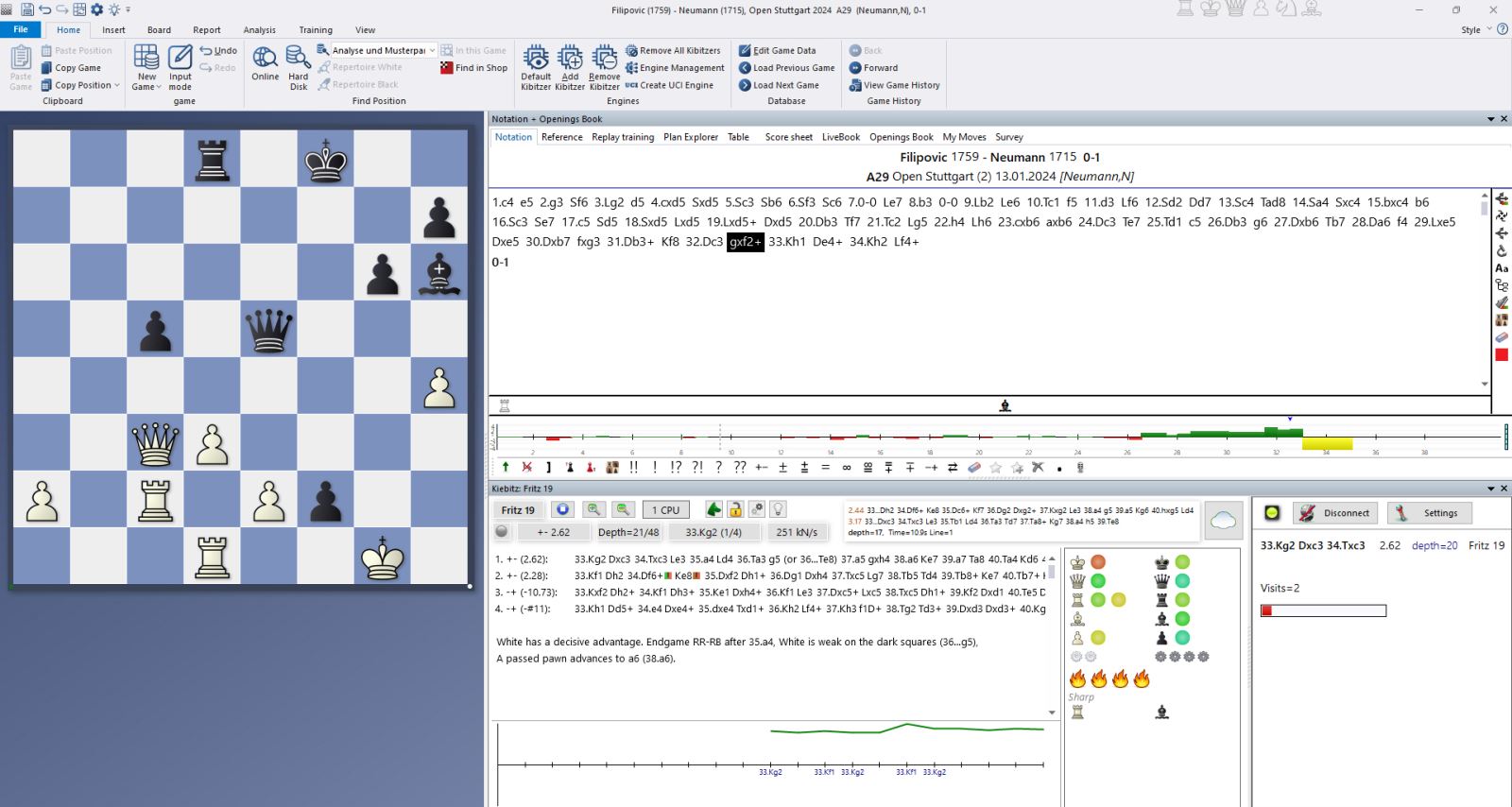
As can be seen in the engine window, there are two good and two bad moves among the four moves available to the white king. In the game, White chose the worst move, which can also be seen from the yellow bar in the position evaluation.
 In this course, Grandmaster Elisabeth Pähtz presents the London System, a structured and ambitious approach based on the immediate Bf4, leading to rich and dynamic positions.
The London System is one of the most popular openings at every level of chess but not all Londons are the same. In this course, Grandmaster Elisabeth Pähtz presents the London System, a structured and ambitious approach based on the immediate Bf4, leading to rich and dynamic positions.
Free sample video: Introduction
Free sample video: 5...cxd4 6.exd4 Qb6 sidelines
This turning point is, of course, crucial for analysis. From a white perspective, one might now want to highlight a few things:

As soon as you insert the first arrows and marks into the analysis, a small coloured circle appears in the notation to indicate this. This allows you to quickly gain an overview of the important phases of the game by clicking directly on the moves before the marking.
 YOUR EASY ACCESS TO OPENING THEORY: Whether you want to build up a reliable and powerful opening repertoire or find new opening ideas for your existing repertoire, the Opening Encyclopaedia covers the entire opening theory on one product.
YOUR EASY ACCESS TO OPENING THEORY
Be well prepared with the new Opening Encyclopaedia 2026! Whether you want to build up a reliable and powerful opening repertoire or find new opening ideas for your existing repertoire, the Opening Encyclopaedia covers the entire opening theory on one product and is the ideal start for your opening training. Many new articles enrich the current theory with new or revisited ideas. The Encyclopaedia can help you learn openings quickly and give you a head start on your next opponent. Each article contains explanations and annotated games illustrating typical plans to deepen your understanding.
In the screenshot, you can see two green arrows and two red arrows. They indicate the two good moves in green and the two bad moves in red. You may spontaneously ask: Why is h2 not an option? The answer is obvious: because the black queen controls that square. So we can expand on the visual commentary:
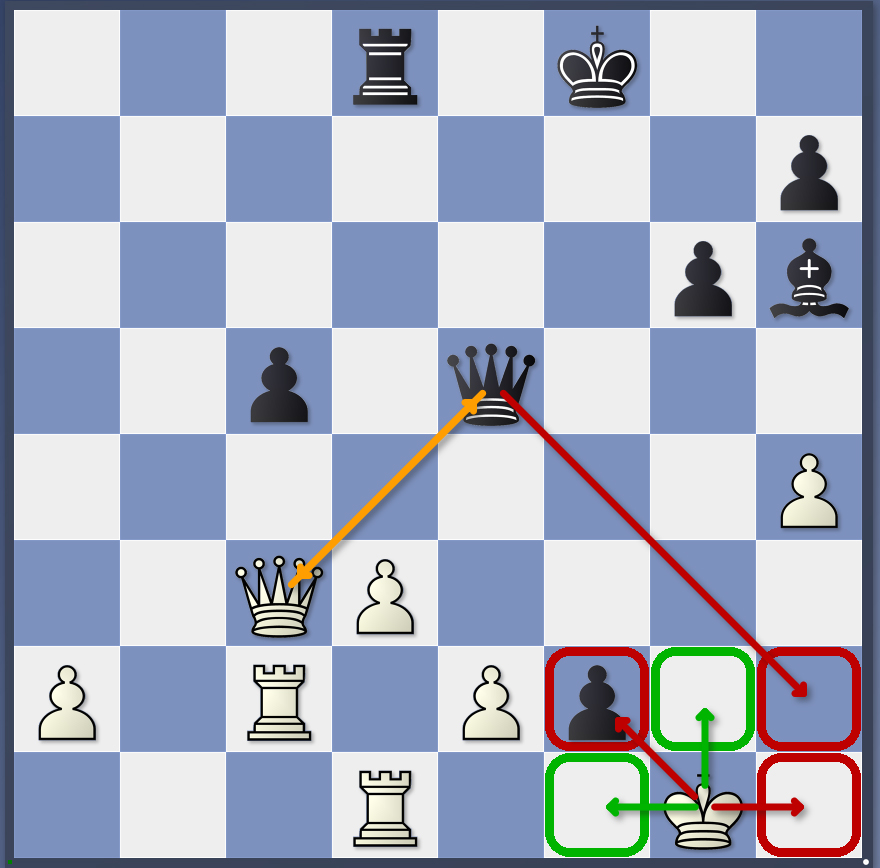
Here, the squares for the king are marked, and the red arrow pointing from the queen shows why the king cannot move to h2. In addition, a double arrow in orange indicates that the two queens are threatening each other.
However, the approach taken in the diagram below might not be the best:
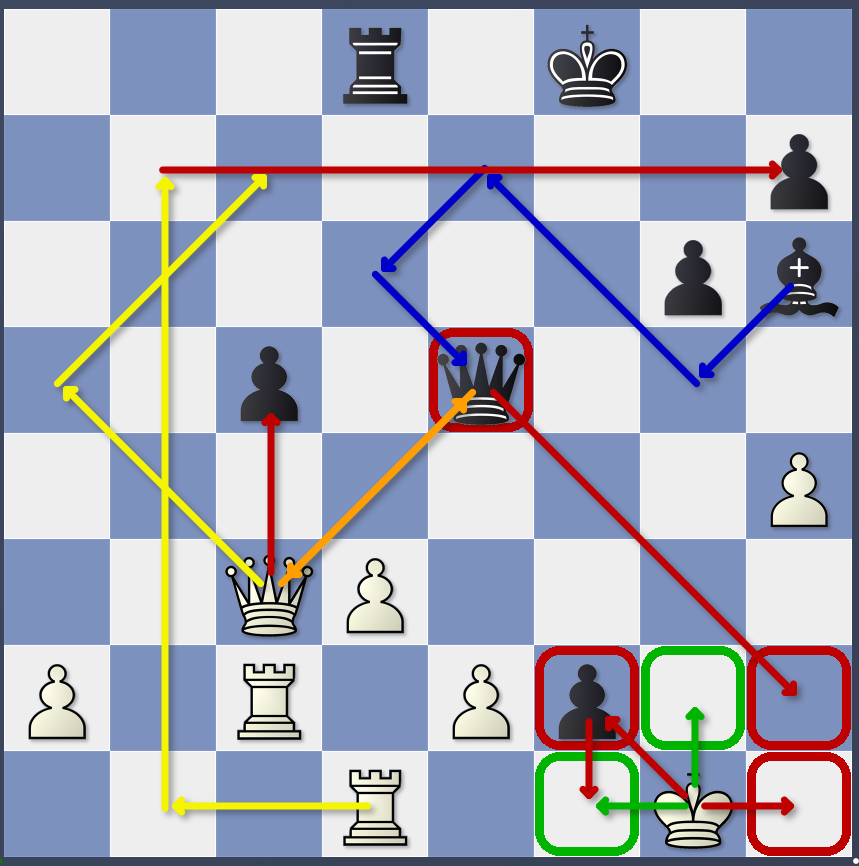
Here, the annotator seems to have gotten a little carried away: in addition to the specific moves of the king, further threats have now been added (red arrows: Qxc5 or ...f1 with promotion). There are also attacking ideas from White (yellow arrows: queen and rook to checkmate on the seventh rank) and from Black (blue arrows: bishop-queen battery on the b8-h2 diagonal).
Judge for yourself whether this is helpful or too much of a good thing...
EXPAND YOUR CHESS HORIZONS
Data, plans, practice – the new Opening Report In ChessBase there are always attempts to show the typical plans of an opening variation. In the age of engines, chess is much more concrete than previously thought. But amateurs in particular love openings with clear plans, see the London System. In ChessBase ’26, three functions deal with the display of plans. The new opening report examines which piece moves or pawn advances are significant for each important variation. In the reference search you can now see on the board where the pieces usually go. If you start the new Monte Carlo analysis, the board also shows the most common figure paths.
Inserting arrows
To insert arrows, go to the field where you want the arrow to start and drag the arrow to the desired position. You can then immediately connect an arrow of the same or a different colour to this arrow – see the example of the white rook in the last screenshot, which first moves to b7 with two yellow arrows and then threatens the queen with a red arrow on the seventh row.
To set the colour of arrows, you have the following options:
- Green arrow: Hold down ALT + LEFT mouse button and drag to the target field
- Yellow arrow: Hold down ALT + CTRL + LEFT mouse button and drag to the target field
- Red arrow: Hold down ALT + SHIFT + LEFT mouse button and drag to the target field
- Blue arrow: Hold down ALT + RIGHT mouse button and drag to the target field
- Orange arrow: Hold down ALT Gr + RIGHT mouse button and drag to the target field
Mark squares
To select a square, click on the respective field using the following mouse key combinations:
- Green square: ALT + LEFT mouse button
- Yellow square: ALT + CTRL + LEFT mouse button
- Red square: ALT + SHIFT + LEFT mouse button
- Blue square: ALT + RIGHT mouse button
- Orange square: ALT + CTRL + RIGHT mouse button
Delete
If you want to remove marks, simply repeat the same command on the same fields – i.e. click on the square again or enter the arrow again.
To remove all marks in a game, use the shortcut ALT + CTRL + Y.
As always, we hope you enjoy trying out and discovering the many great features of ChessBase´26!
------
ChessBase has developed over decades to become what it is now in its 2026 version. The program has countless options, which we will present here in small portions – so you can design your interface for pleasant daily use and keep learning about new options and how to use them to get the most out of ChessBase´26 and save time.
We hope that this tip will help you to have more fun and be more successful when using ChessBase´26. You can find more tips and hints on our support pages and FAQ pages.
All parts of the series and more links:
The free app from ChessBase! ChessBase Mobile has everything you need as a chess player on the go:
access your chess data in cloud databases - and 13 million games.
ChessBase Mobile has everything you need as a chess player on the go:
- Access the ChessBase online database - with more than 13 million games: search for players, positions, openings etc.
- Save your own games and analyses in cloud databases
- Synchronise your personal databases across all your devices
- Analyse your games with the built-in engine
- Live opening book: use the most comprehensive and up-to-date statistics for every opening position
- Access your opening repertoire in the cloud: create and edit your personal opening repertoire
- 300 opening overviews, with repertoire suggestions: get started with new systems!
- Practise opening variations with three modes.
- Advanced notation: add comments, symbols, variations, arrows and markings to your games
- Advanced sharing options: share games and positions via link, image, GIF, FEN or QR code
- PGN compatibility: upload and download games or databases as PGN files



.jpeg)