



.jpeg)
As is often the case in ChessBase, there are several ways to work with databases. In episode 7 of this tutorial series, we already explained some basic database functions. In the context of this episode, you can get to know another method:
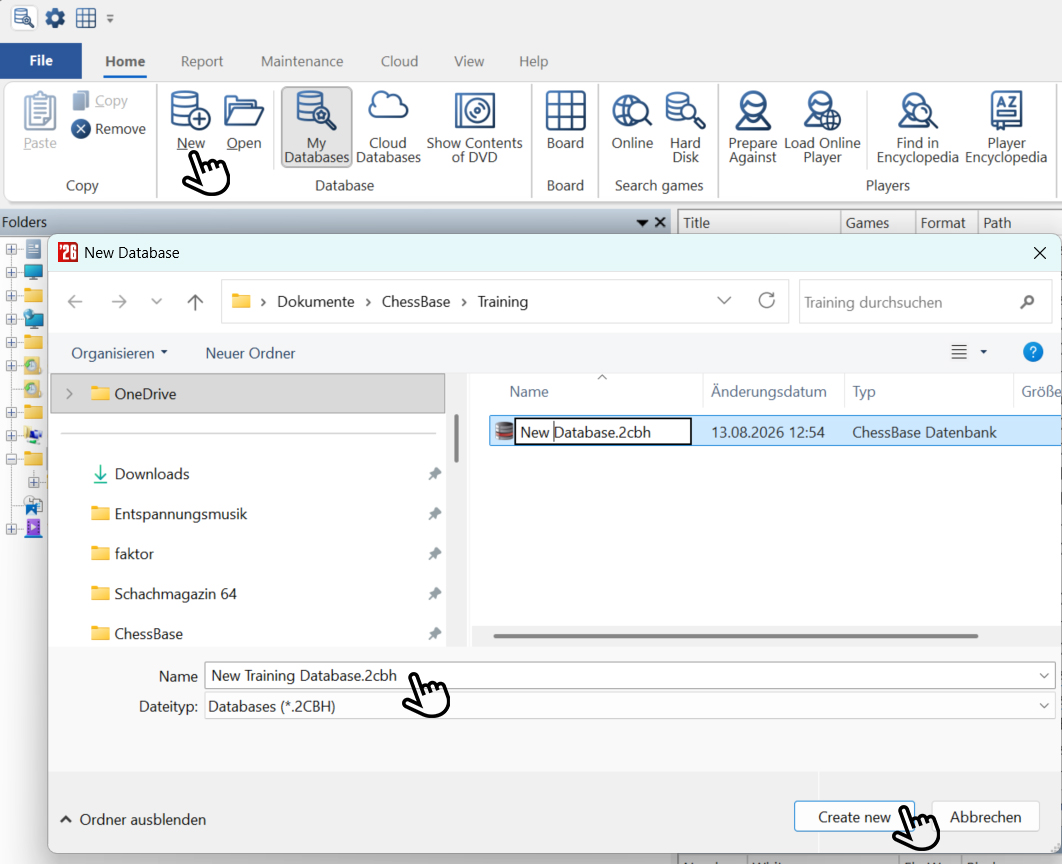
The three hands show the way: Click first at the top on "New" to create a new database — you can also do this via the "File" menu. Then, in the menu window that opens, select the folder where you want to save the new database and give the database a name. Finally, click "Create new" in the bottom right.
This database will now also appear in the "My Databases" window.
Games and themes for the database
Here we describe three examples of how you can fill your database with training games:
Games from the Mega Database on specific themes
We want to find checkmate positions to demonstrate checkmating for beginners. In the Romantic era of chess, the likelihood of a game being played all the way to checkmate was certainly higher. So we decide to look for games by Paul Morphy in which checkmate occurred.
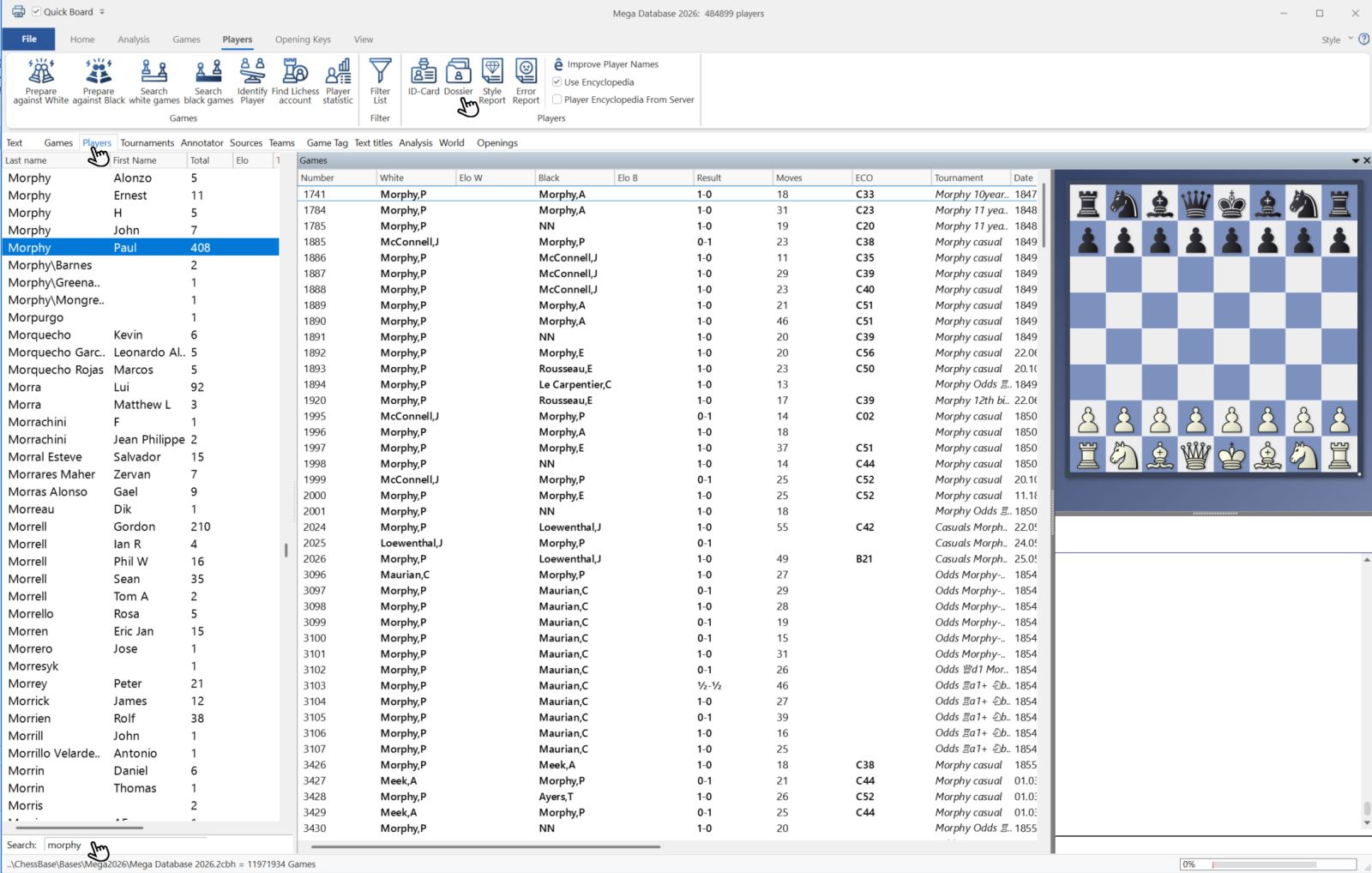
To do this, in the Mega Database select the "Players" tab, enter the name at the bottom, and then click on "Dossier" at the top (Shortcut: CTRL+ALT+D):
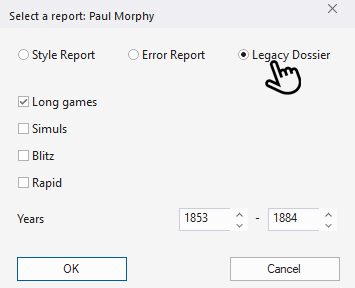
In the menu window that opens, click on "Legacy Dossier" and then on "OK":
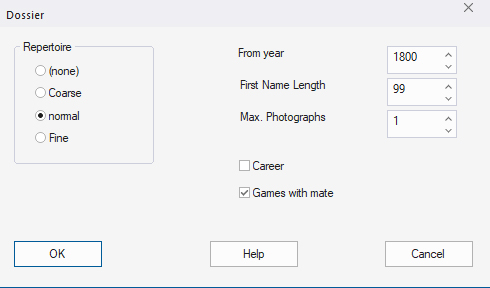
In the new window, check "Games with mate" and confirm again with "OK":
The dossier is generated, which may take a while:
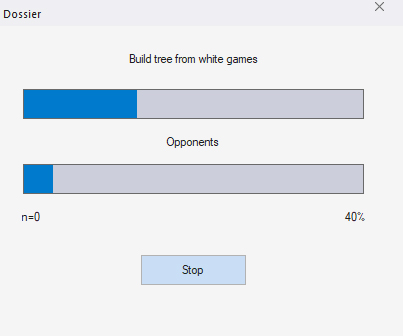
The result then looks as follows (excerpts):
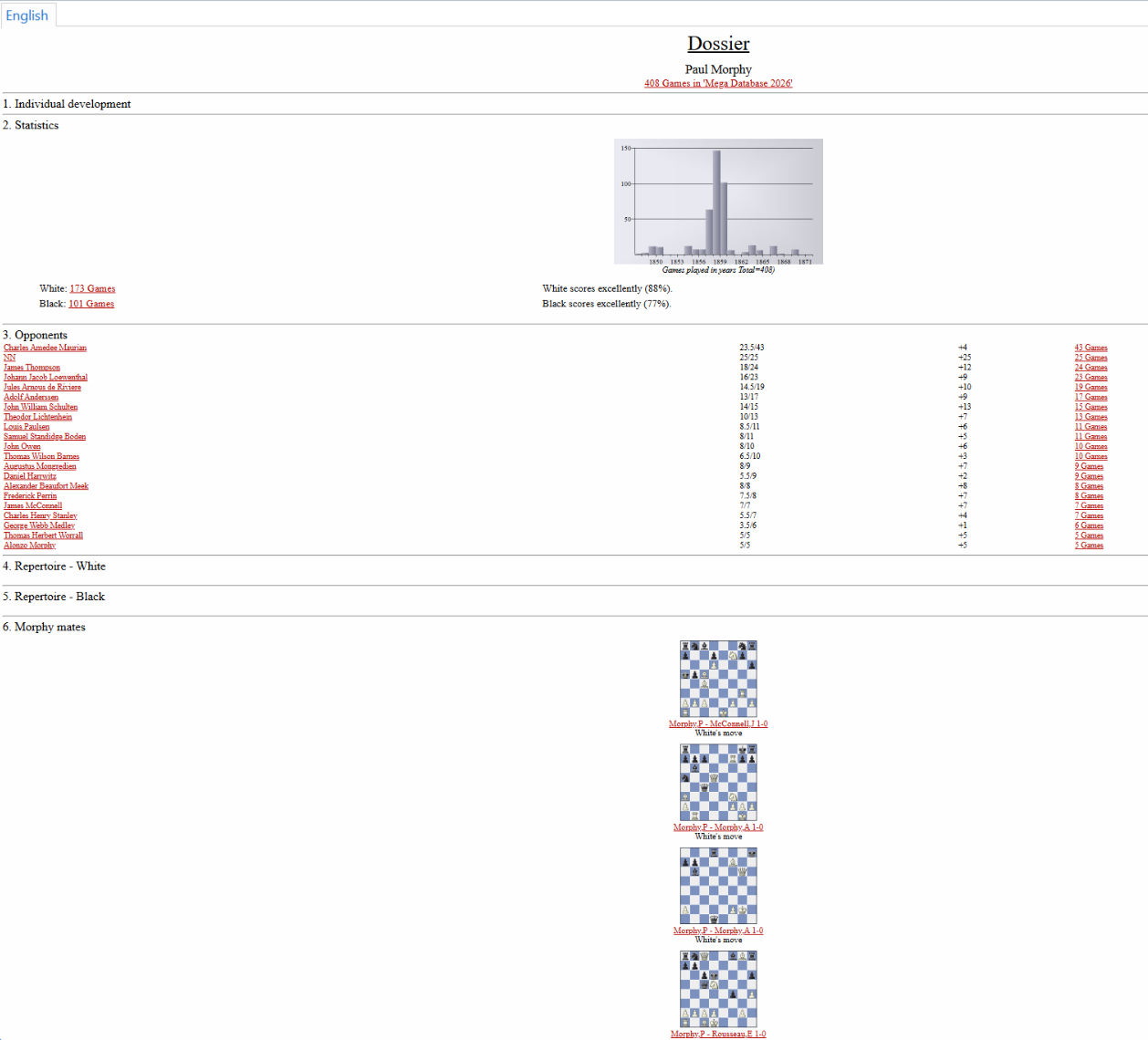
Here you can now see several games by Morphy that ended in checkmate. If you click on the red links, the games will open in a new window.
If, in this new window, you go to "File" in the main menu and select "Save as new game," this selection window will open. Here, choose the directory you created above and the database you set up, in order to store the game there via the "New/Open" button:
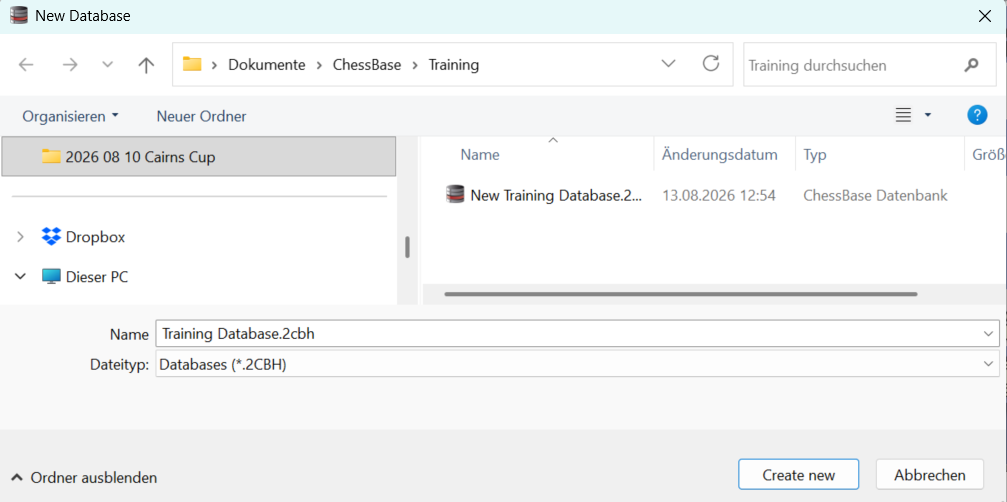
This way, you can expand the database with additional Morphy games or games by other masters.
Using material from the ChessBase Magazine (CBM)
If you want to work with a ready-made database, you can, for example, use the already prepared tactics database from the ChessBase Magazine section "Tactics Total." To do this, click in the CBM on the section and the corresponding article there:
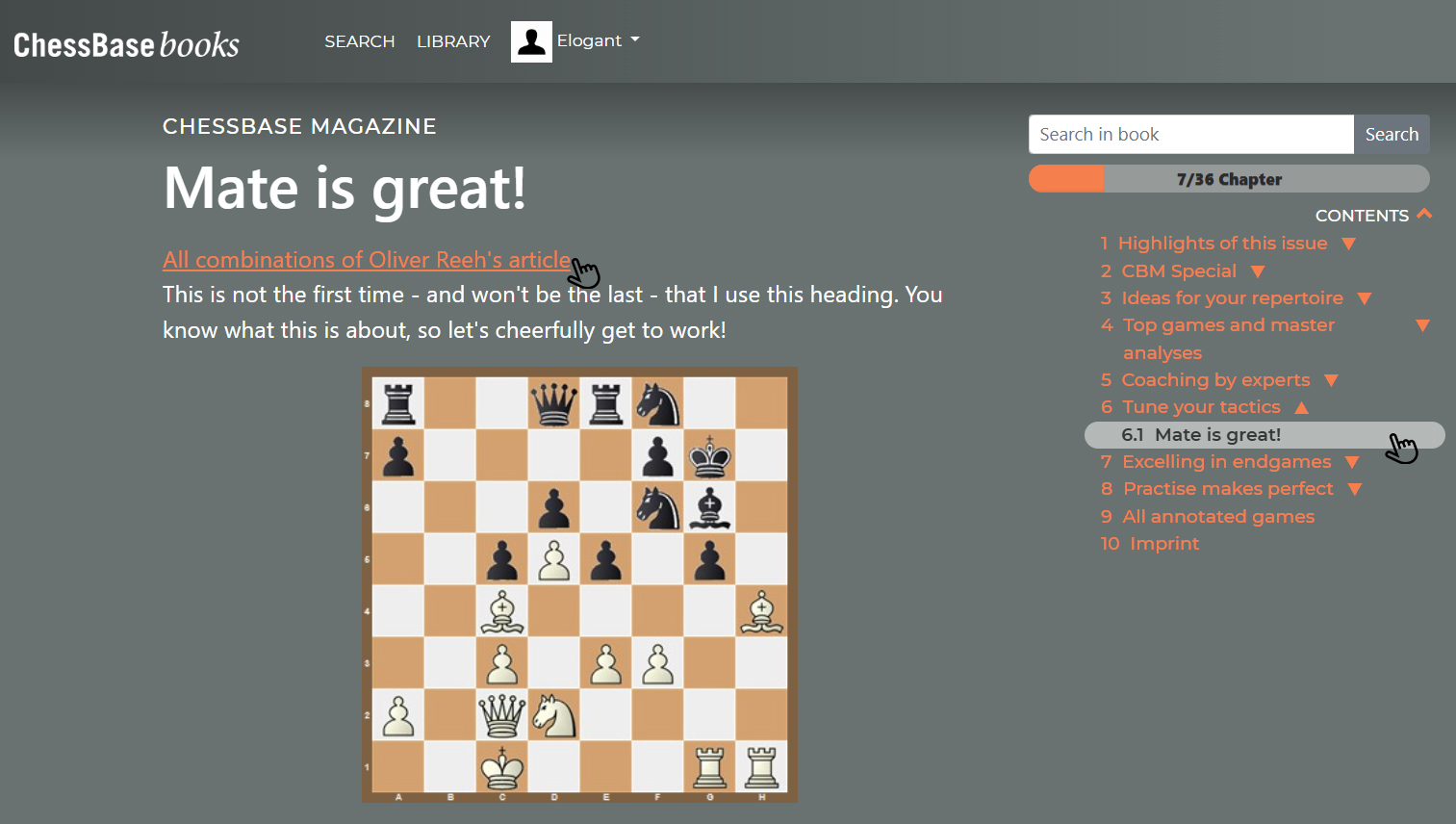
There you will find the practical option "All tactical exercises from this article." If you click there, this window will open:
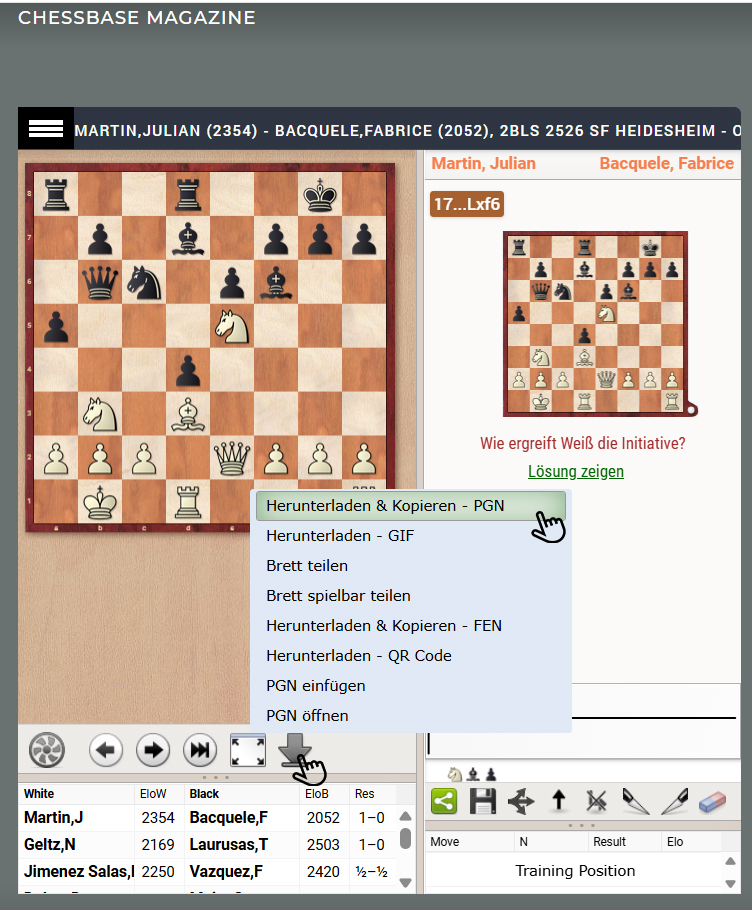
All the tactical exercises are displayed below the left diagram. With a click on the arrow, you can start the download:
If you select the top option "Download & Copy – PGN," the database will be saved as a PGN in your downloads folder. If ChessBase´26 is open, the database will also appear simultaneously in these two windows:
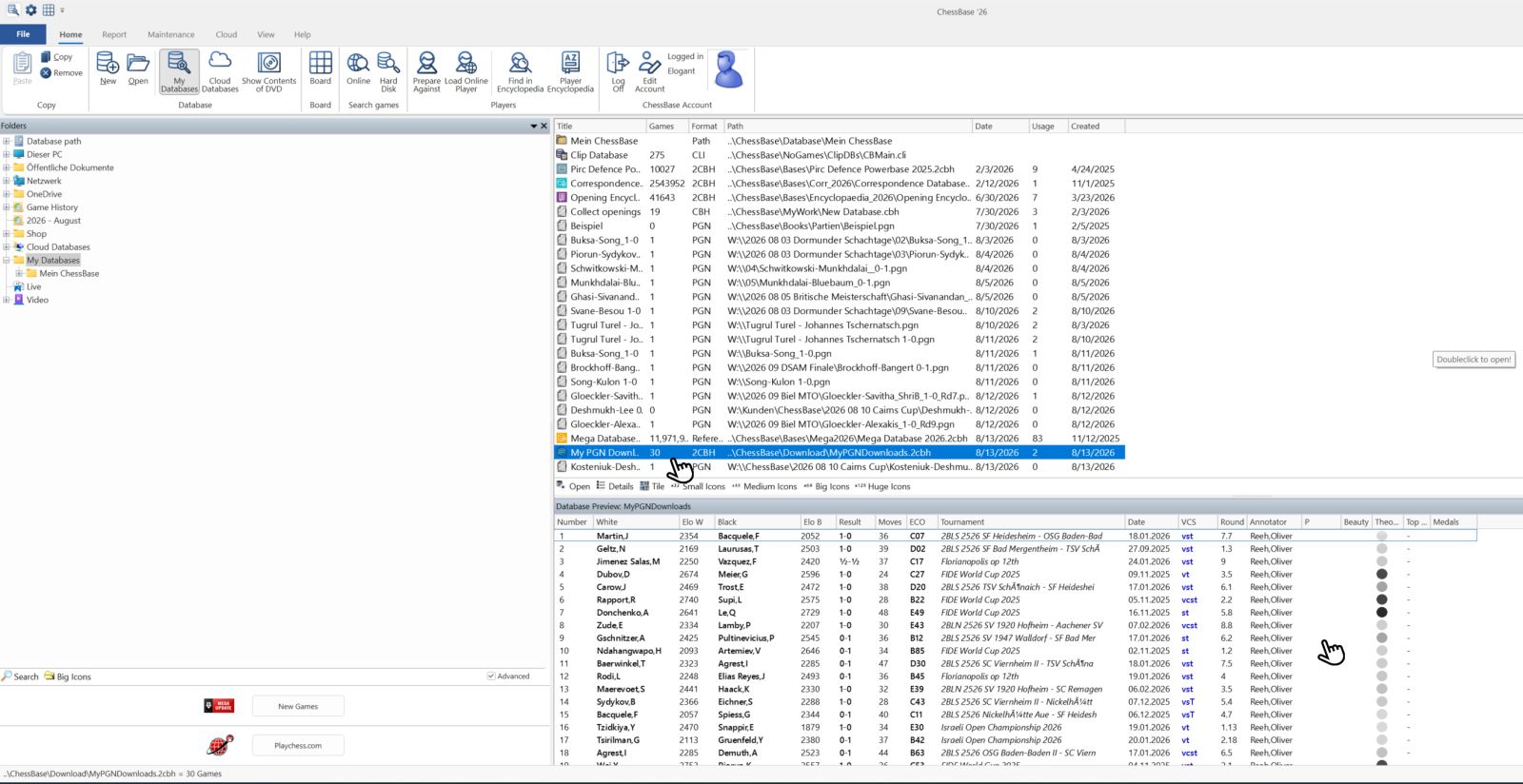
Now, as described above, you can create a new database and insert individual games there, or mark all games and drag & drop them into it. Don’t forget to save!
Adding games "by hand" to a database
Of course, you can also insert games into a new or existing database that you notice somewhere else or come across by chance. If you have the PGN, you already know the procedure. If, for example, you see a nice combination in a magazine, you can also integrate this position into the database via "Set up position" (see tutorial episodes 15 and 16).
Give it a try and create your databases with ChessBase´26, the Mega Database, the ChessBase Magazine, or other sources! There are many possibilities ... In the next episode, you will learn how to transform this database into your own training material, as Oliver Reh does in the ChessBase Magazine.
ChessBase has developed over decades to become what it is now in its 2026 version. The program has countless options, which we will present here in small portions – so you can design your interface for pleasant daily use and keep learning about new options and how to use them to get the most out of ChessBase´26 and save time.
We hope that this tip will help you to have more fun and be more successful when using ChessBase´26. You can find more tips and hints on our support pages and FAQ pages.
All parts of the series and more links:
_REPLACE_BY_ADV_5


| Advertising |











.jpeg)