


Strictly speaking, when working with ChessBase 18, you never need to leave the main ChessBase window. Within the interface, you can access all storage locations for your files, as well as view items you have purchased in the Shop. In this episode, we show you how this works:
Activating the "Folders" window
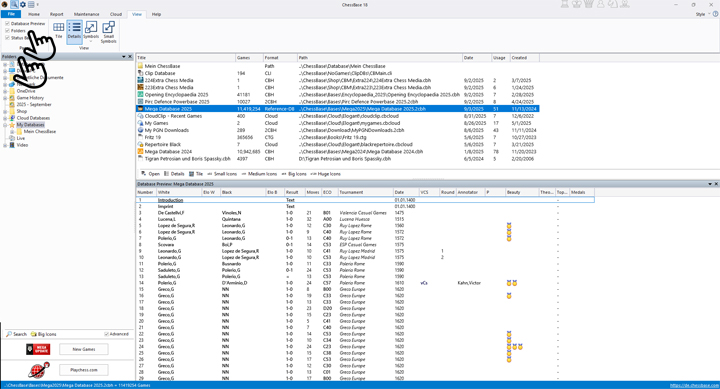
The basic requirement for using ChessBase 18 in this convenient way is that the "Folders" window is open. To do this, simply click on the main menu item View and check the box Folders (in tutorial parts 23, 24, and 25 we have already explained some other functions and display options, such as the two additional options shown above — "Database Preview" and "Status Bar" — as well as the update functions arranged below).
In this view there are two areas that we will explain in this episode: the upper part with the directory structure, and the lower part with the fields Search, Large, and Advanced.
Directory tree
Let us first take a look at the directory tree when the Advanced box is not checked:
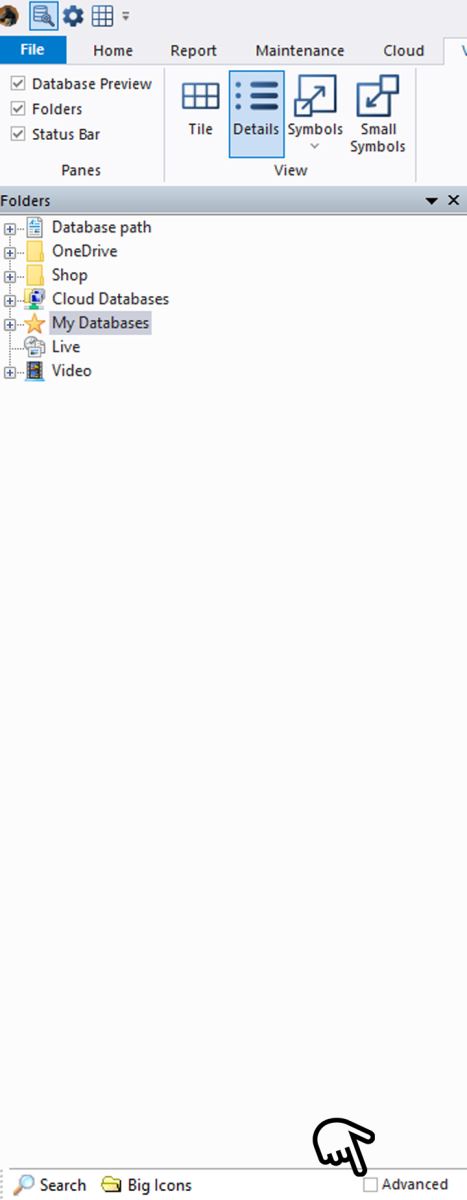
You will see the main directories of your ChessBase version.
If the Advanced field is not visible, you will need to widen the window.
You can now click on as many plus signs as you like to display subfolders:
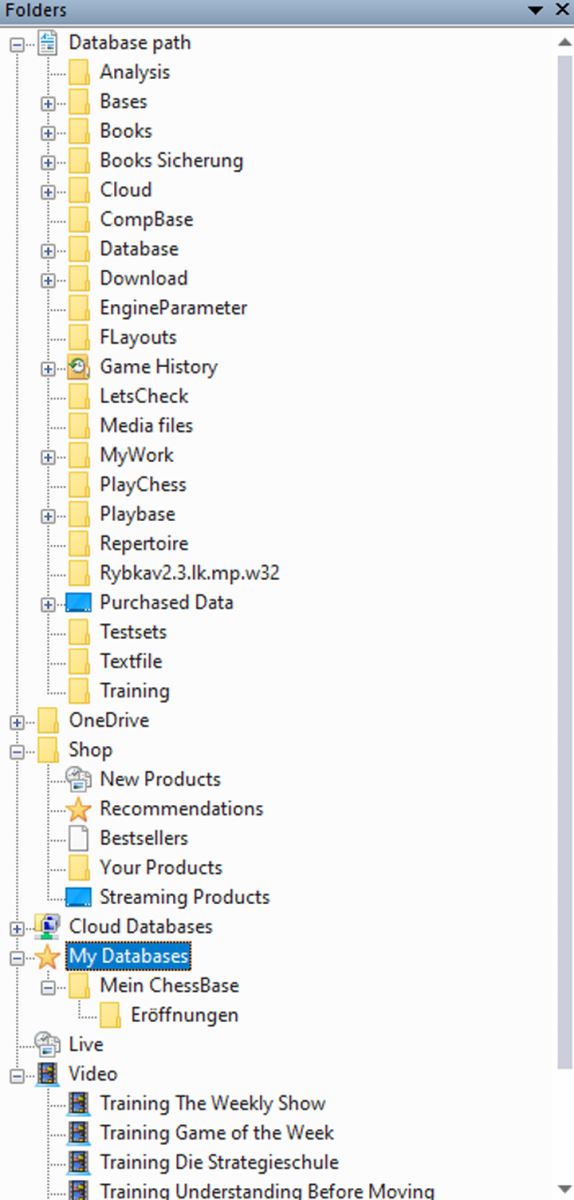
We can see here that the long "Database Path" window is expanded, showing a wide range of options. For example, under Books and Bases you will find the stored opening books (Books = .ctg files) and the installed products (Bases such as the Mega Database 2025):

Note on storage locations:
Where an installed product is located depends on the product. Installed products may be found under Bases (Mega/ Corr/ Opening Encyclopedia/ PowerBook databases – each in their own subdirectory).
Video courses, on the other hand, are by default located under C:\Users[Name]\Documents\ChessBase\Shop.
Ultimately, however, the user can decide where everything should be stored by deviating from the standard installation.
You can also see in the directory folder that you can browse the Shop there. For example, you will find new products or those you have already purchased, which you can then open directly with a double-click. In the direct list you can also see what to expect in the course, and you can open this content as a database as well:
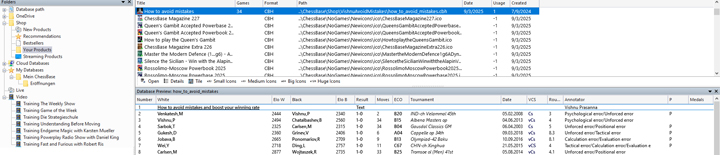
The same applies to the "Video" window, where you can access the ChessBase video shows by Karsten Müller, Daniel King, or Harald Schneider-Zinner (the download may take a few minutes):
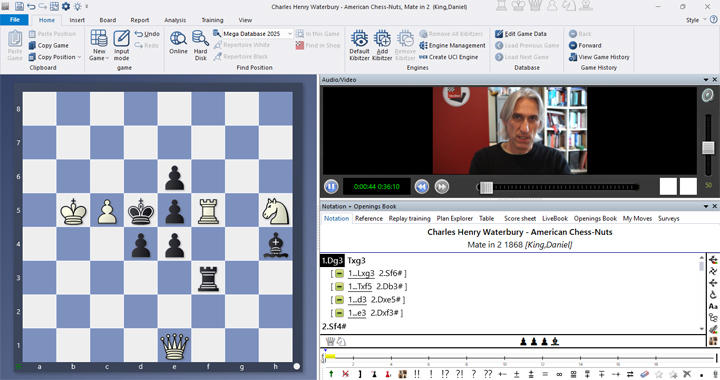
Through the "Live" window you can also view the data from the ChessBase live coverage on the homepage. Here is an example:

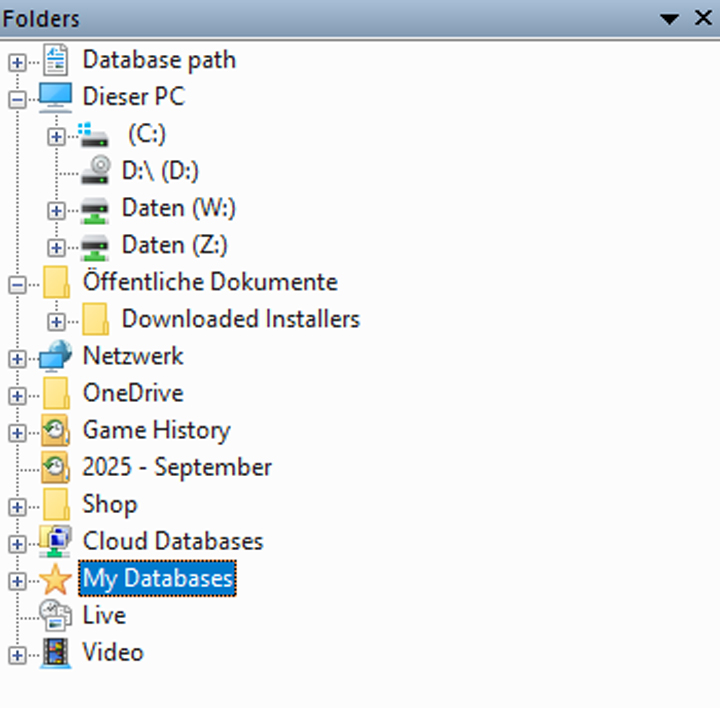
When the "Advanced" box is checked, you also gain access to your Windows Explorer directories – shown here already partially expanded: everything visible between "Database Path" and "OneDrive" is now also available for access:
Suppose you want to search for games of certain players from your databases – you can do this very easily and quickly using the search function.
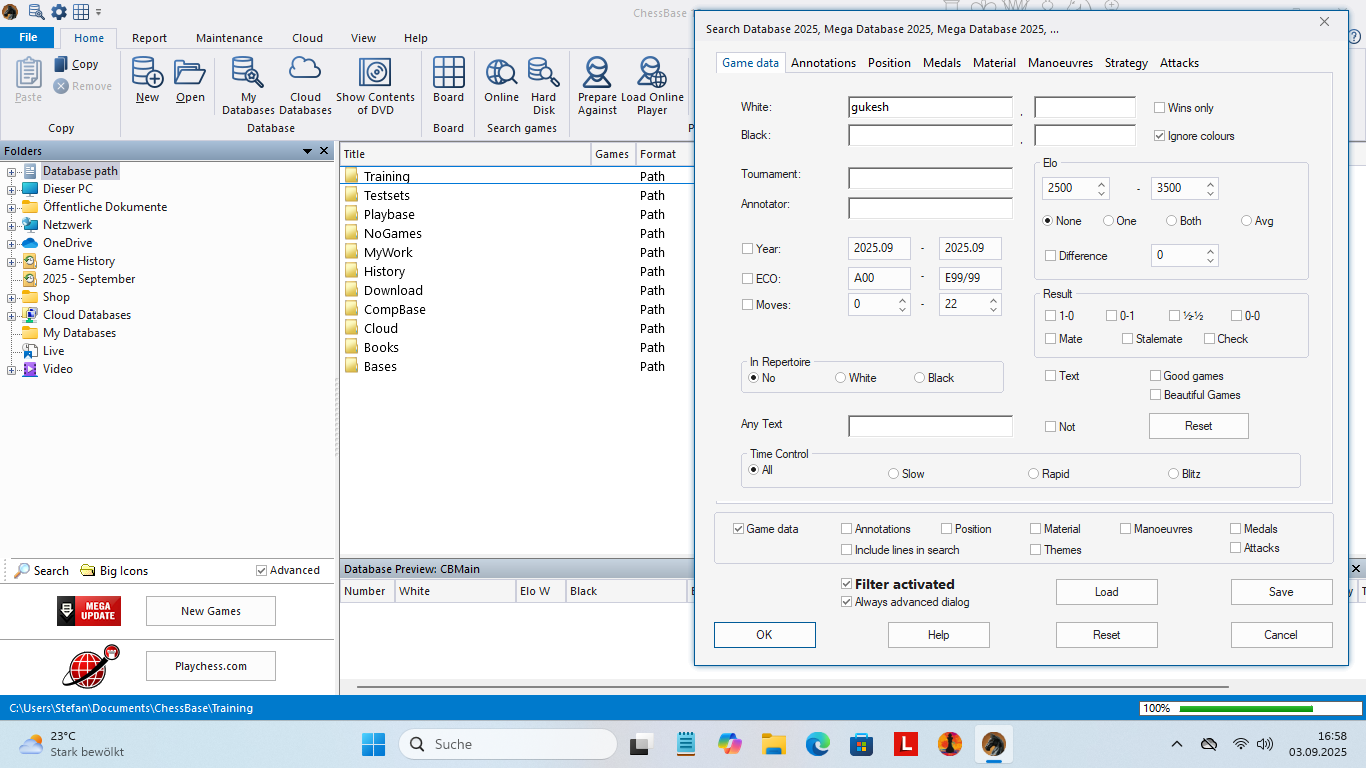
Example 1: You can start the search in a directory directly via the directory structure. By selecting a directory in which local databases are stored, you can start a search across all databases in this directory – without having to mark all the databases individually (see Example 2):
Example 2: You have installed the Opening Encyclopedia 2025 and want to search for games by World Champion Gukesh with White. To do this, go to "My Databases" and in the main window to "Opening Encyclopedia 2025". You can even select two or more databases (CTRL + left mouse button, or SHIFT + left mouse button for entire blocks) and search them simultaneously:
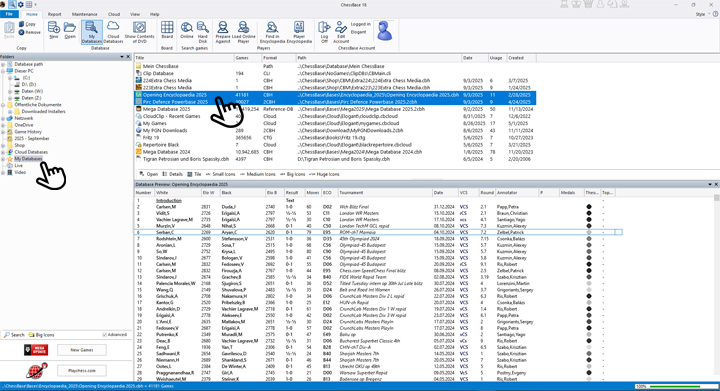
Then click on "Search" and in the mask that opens, enter the player you are looking for under White. Then click "OK" (or enter additional desired parameters beforehand):
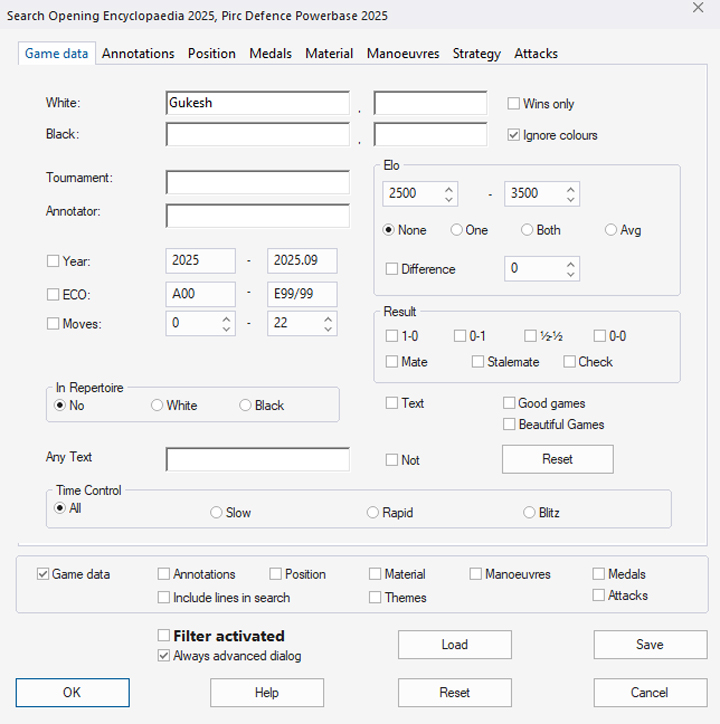
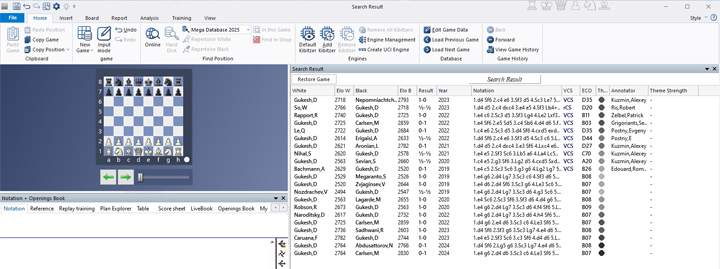
The search result that appears after a few moments looks like this:
The option is quickly explained: there are two settings that format the directory structure differently – just click and choose the one that suits your preference.
ChessBase has evolved over decades to become what it is today with its 18th version. The programme has countless options, which we will introduce here in small chunks – so you can customise your interface for everyday use and continually discover and learn new options to get the most out of ChessBase 18 and save time.
You can find more tips and hints on our support pages and FAQ pages.
All parts of the series:
Beginner's Tips Part 1: Entering and Saving Your Own Games
Beginner's Tips Part 2: Creating Variations and Activating the Engine
Beginner's Tips Part 3: Inserting Variations from References and the Engine
Beginner's Tips Part 4: Figurines and Colours
Beginner's Tips Part 5: Annotating
Beginner's Tips Part 6: Quick Command Bars and Variation Hierarchy
Beginner's Tips Part 7: Organizing Your Database Correctly!
Beginner's Tips Part 8: Putting Together What Belongs Together...!
Beginner's Tips Part 9: "Tactical Analysis"
Beginner's Tips Part 10: "Standard Layout or Custom Layout"
Beginner's Tips Part 11: Multitasking with Several Windows
Beginner's Tips Part 12: Arrows and Marks
Beginner's Tips Part 13: Powerbooks and Powerbases
Beginner's Tips Part 14: Save Resources with Remote Engines
Beginner's Tips Part 15: Setting Up and Analysing Positions (Part 1)
Beginner's Tips Part 16: Setting Up and Analysing Positions (Part 2)
Beginner's Tips Part 17: Choosing Your Board Design
Beginner's Tips Part 18: What the mouse can do!
Beginner's Tips Part 19: Find model games for training
Beginner's Tips Part 20: Award medals to your best games!
Beginner's Tips Part 21: Maximum Training Effect with the Power Tool "Replay Training" (Part 1)
Beginner's Tips Part 22: Maximum Training Effect with the Power Tool "Replay Training" (Part 2)
Beginner's Tips Part 23: Stay up to date with program updates
Beginner's Tips Part 24: Always get the latest games via update
Beginner's Tips Part 25: Customizing your view - how to see what matters
Beginner's Tips Part 26: Null moves - The art of doing nothing
Beginner's Tips Part 27: Creating Effective Training Material (Part 1)
Beginner's Tips Part 28: Creating Effective Training Material (Part 2)
Beginner's Tips Part 29: Creating Effective Training Material (Part 3)