ChessBase 18 Update
The ChessBase development team is constantly working to improve the program, both technically and in terms of user-friendliness. You don’t need to wait for the next version of ChessBase to benefit from these updates. With just a few clicks, you can update your program.
For clarity, please note that you can only use the update service if you have purchased the current version and are logged in with the appropriate credentials.

The main menu bar shows your login details on the far right. You need to be logged in with your account here in order to perform updates.
Update via Popup
When you start ChessBase, a popup window appears once a day in the bottom right corner, offering to install an update if one is available:
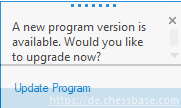
Click on "Update Program" and then continue with the second screenshot that follows.
Update via the "File" Menu
If the popup doesn't appear, you can access the update through the "File" option in the main menu:
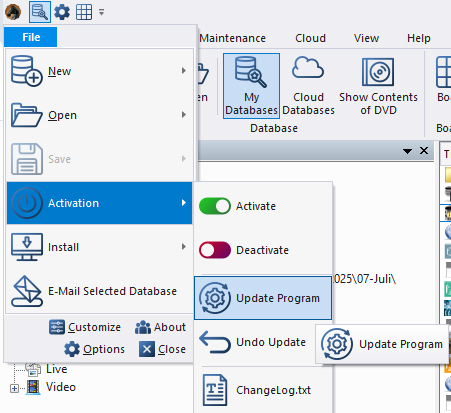
From the "Activation" menu, select "Update Program" to run the update.
Your personal chess trainer. Your toughest opponent. Your strongest ally.
FRITZ 20 is more than just a chess engine – it is a training revolution for ambitious players and professionals. Whether you are taking your first steps into the world of serious chess training, or already playing at tournament level, FRITZ 20 will help you train more efficiently, intelligently and individually than ever before.
ChessBase 18 program only: ChessBase is a personal, stand-alone chess database that has become the standard throughout the world. Everyone uses ChessBase, from the World Champion to the amateur next door. It is the program of choice for anyone who loves the game and wants to know more about it. Start your personal success story with ChessBase and enjoy the game even more.
Pro tips:
- In general, you need to activate the program using the activation button. You can do this on up to three of your personal computers. If you get a new computer and have already used all three activations, you can deactivate the program on one of your other devices here in order to use it on the new one.
- Using "Undo Update," you can roll back the last update and restore the previously used version of the program. This might be useful, for example, if you're using an older computer that may have trouble with a new update. In such cases, it's a good idea to contact our support team.
- Under "ChangeLog.txt," tech-savvy users can see what was updated most recently.
The update process works as follows once you have selected "Update Program":
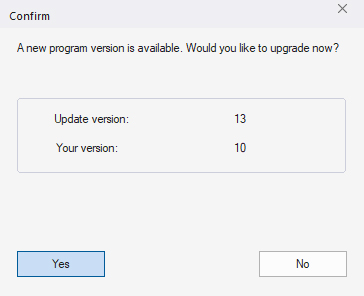
The window shows that the current available update is version 13, while your computer is currently running version 10. Click "Yes" to start the update process. You’ll then see the following status message:
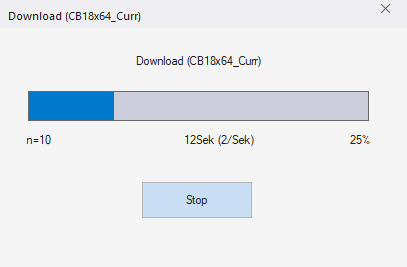
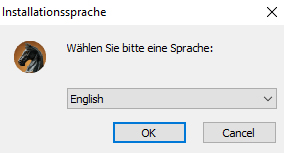
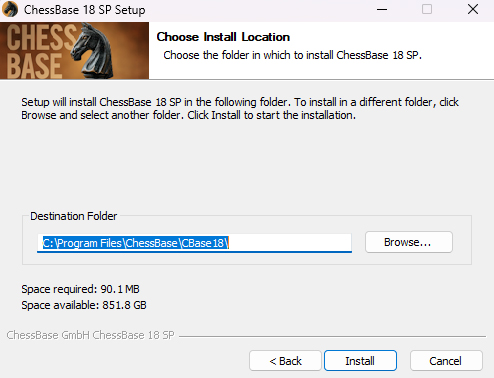
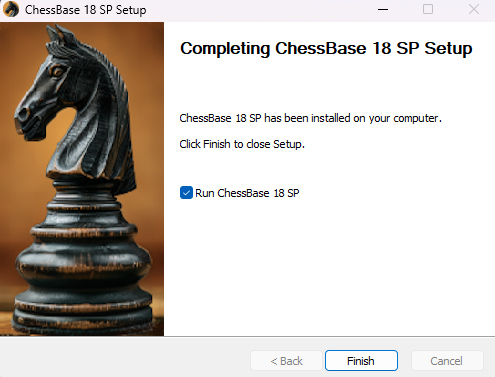
... along with these self-explanatory prompts:
---
---
... and ChessBase 18 is running the latest version.
We hope you enjoy the latest updates for ChessBase 18. In the next part of the tutorial, we’ll show you how to get the most out of your current ChessBase version by regularly updating your Mega Database 2025...
------
ChessBase has evolved over decades to become what it is today with its 18th version. The programme has countless options, which we will introduce here in small chunks – so you can customise your interface for everyday use and continually discover and learn new options to get the most out of ChessBase 18 and save time.
You can find more tips and hints on our support pages and FAQ pages.
All parts of the series:
Beginner's Tips Part 1: Entering and Saving Your Own Games
Beginner's Tips Part 2: Creating Variations and Activating the Engine
Beginner's Tips Part 3: Inserting Variations from References and the Engine
Beginner's Tips Part 4: Figurines and Colours
Beginner's Tips Part 5: Annotating
Beginner's Tips Part 6: Quick Command Bars and Variation Hierarchy
Beginner's Tips Part 7: Organizing Your Database Correctly!
Beginner's Tips Part 8: Putting Together What Belongs Together...!
Beginner's Tips Part 9: "Tactical Analysis"
Beginner's Tips Part 10: "Standard Layout or Custom Layout"
Beginner's Tips Part 11: Multitasking with Several Windows
Beginner's Tips Part 12: Arrows and Marks
Beginner's Tips Part 13: Powerbooks and Powerbases
Beginner's Tips Part 14: Save Resources with Remote Engines
Beginner's Tips Part 15: Setting Up and Analysing Positions (Part 1)
Beginner's Tips Part 16: Setting Up and Analysing Positions (Part 2)
Beginner's Tips Part 17: Choosing Your Board Design
Beginner's Tips Part 18: What the mouse can do!
Beginner's Tips Part 19: Find model games for training
Beginner's Tips Part 20: Award medals to your best games!
Beginner's Tips Part 21: Maximum Training Effect with the Power Tool "Replay Training" (Part 1)
Beginner's Tips Part 22: Maximum Training Effect with the Power Tool "Replay Training" (Part 2)