In the last tutorials, we showed you how to systematise a database and add more games to it, and how you can use the “Tactical Analysis” function to conveniently analyse your game, including training questions.
When doing this, and when inserting comments, opening variations, reference games, etc., it often happens that more and more editing windows are open, and things quickly become confusing. A hardware tip would be to purchase a second monitor—if you don't already have one. Whether with or without a second monitor, ChessBase 26 offers a great way to keep an eye on everything important.
YOUR EASY ACCESS TO OPENING THEORY: Whether you want to build up a reliable and powerful opening repertoire or find new opening ideas for your existing repertoire, the Opening Encyclopaedia covers the entire opening theory on one product.
YOUR EASY ACCESS TO OPENING THEORY
Be well prepared with the new Opening Encyclopaedia 2026! Whether you want to build up a reliable and powerful opening repertoire or find new opening ideas for your existing repertoire, the Opening Encyclopaedia covers the entire opening theory on one product and is the ideal start for your opening training. Many new articles enrich the current theory with new or revisited ideas. The Encyclopaedia can help you learn openings quickly and give you a head start on your next opponent. Each article contains explanations and annotated games illustrating typical plans to deepen your understanding.
Create your own layout
We'll show you how to create your own custom layout for displaying a single game (we'll explain how to coordinate multiple game windows in a future article). Simply select a game from your database and play around with the menu items:
In the main "View" menu, you can choose from preset options under "Default Layout." Explore a few alternatives and then stick with the one you like best. You can change this at any time if new menu windows make a different display more convenient.
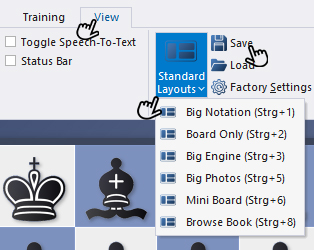
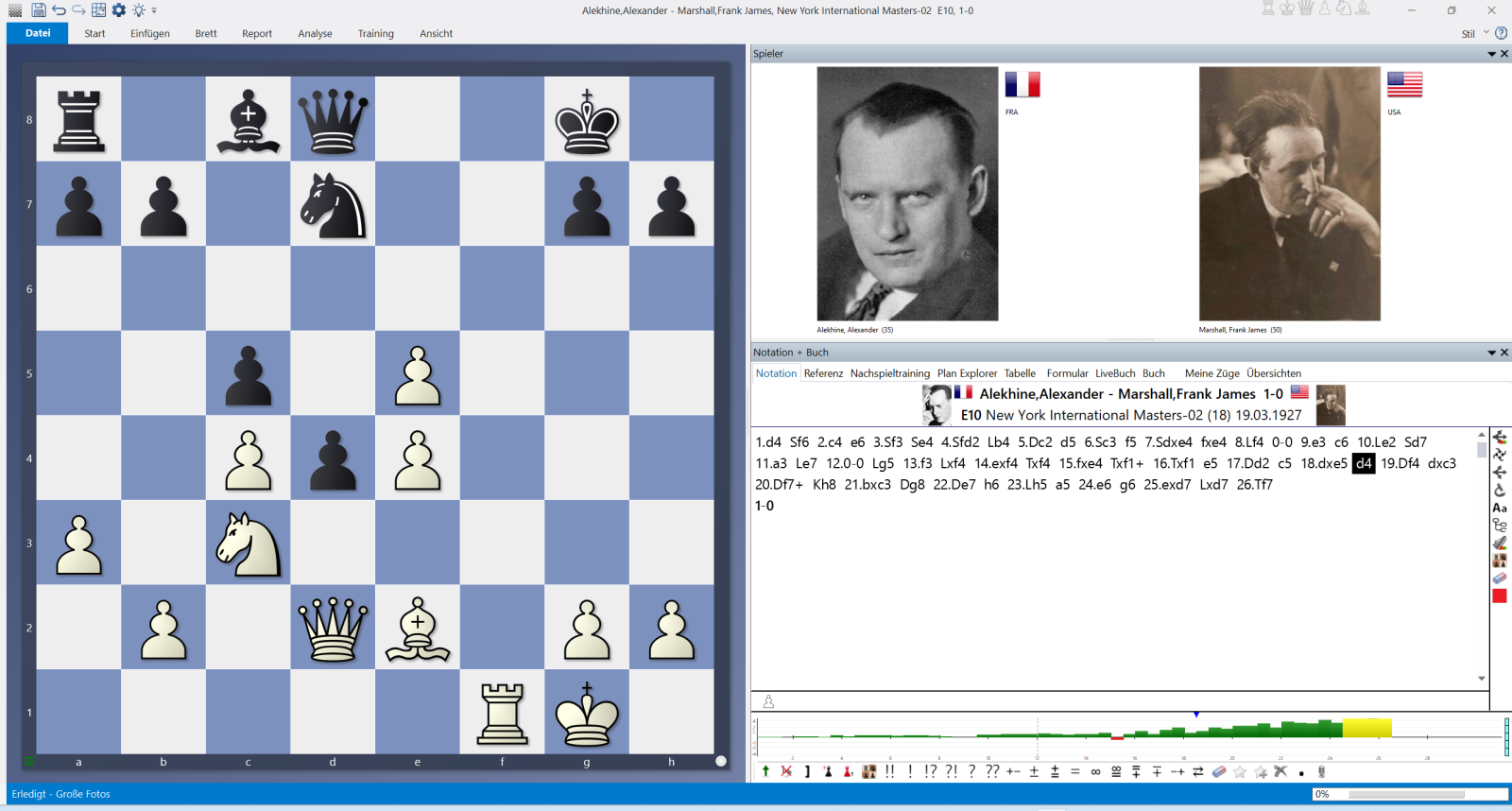
In our example, the option “Large Photos” was selected (which would also be possible using the shortcut CTRL+5 – the shortcuts for the respective options can all be seen in the menu window):
 Your personal chess trainer. Your toughest opponent. Your strongest ally.
With this combination, you can’t go wrong: the comprehensive chess program Fritz 20 plus the latest opening theory from Powerbook 2026! FRITZ 20 is more than just a chess engine – it’s a training revolution for ambitious players and professionals. Together with Powerbook 2026, Fritz allows you to practise openings at every level and in every area. Whether you’re taking your first steps into the world of serious chess training or already playing at tournament level: with FRITZ 20, you’ll train more efficiently, intelligently and individually than ever before!
You can change this view further: For example, if you want to make the board smaller and the two windows on the right larger, you can enlarge or reduce the frames as you wish by holding down the left mouse button in the transition between the windows, just as you can do in Windows Explorer, for example.
If you want to arrange the windows individually by hand or with the mouse, go to the area containing the window name and hold down the left mouse button. You can now move the window freely, and it will move to the front. If you click on one of the opening crosses with the arrows and release the mouse button over one of the arrows, the selected window will be inserted in the selected fixed position next to the other windows – here, too, the proof of the pudding is in the eating:
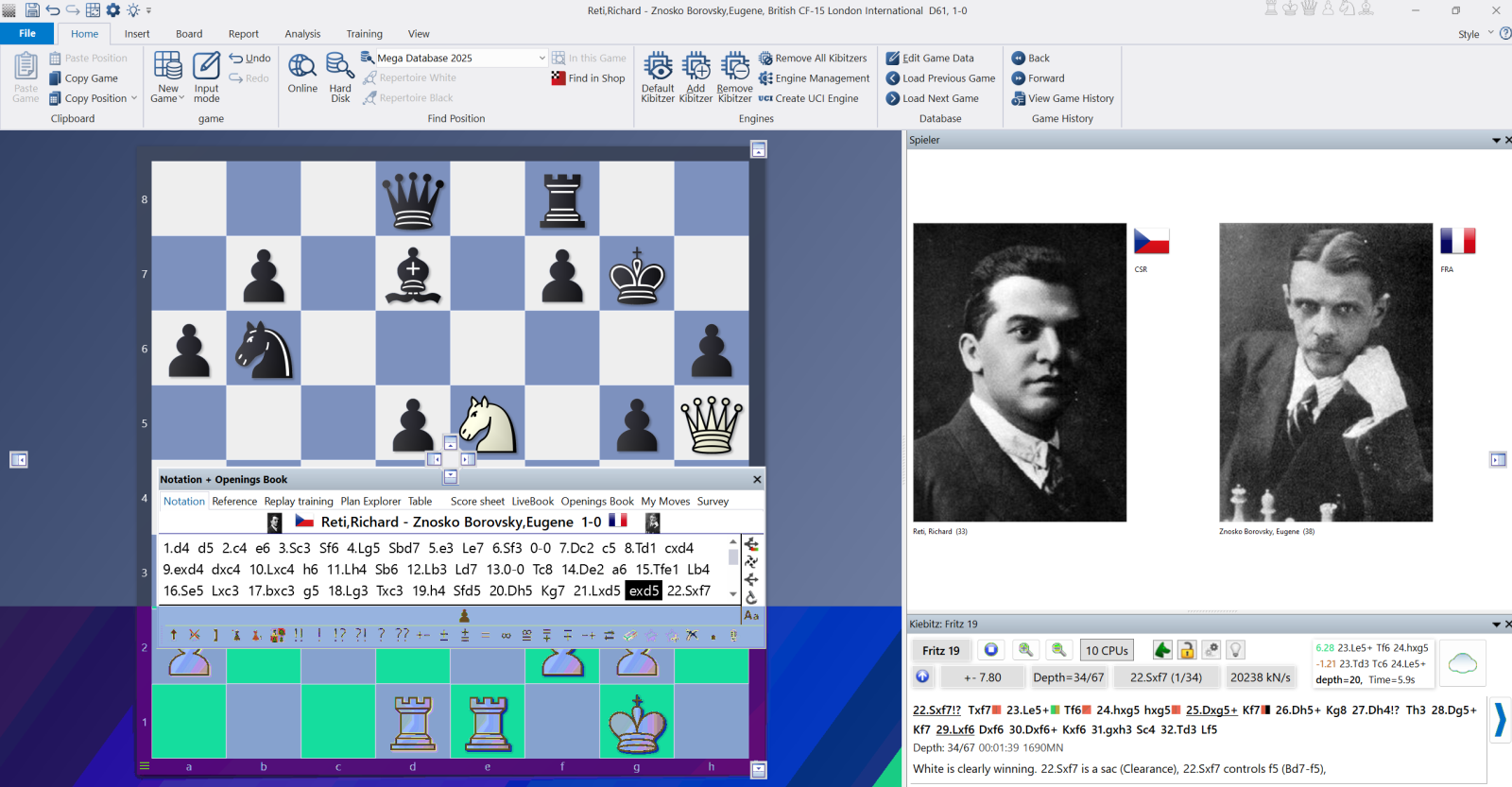
If you release the mouse over the highlighted downward arrow, you will get the following new screen image – if you also add the standard window, as you can see in the last screenshot, and move it to the bottom right and enlarge it a bit in the same way:
 Learn from legends! Get the full Master Class series on the World Champions at a discounted bundle price – only for a limited time.
Learn from legends! Get the full Master Class series on the World Champions at a discounted bundle price – only for a limited time.
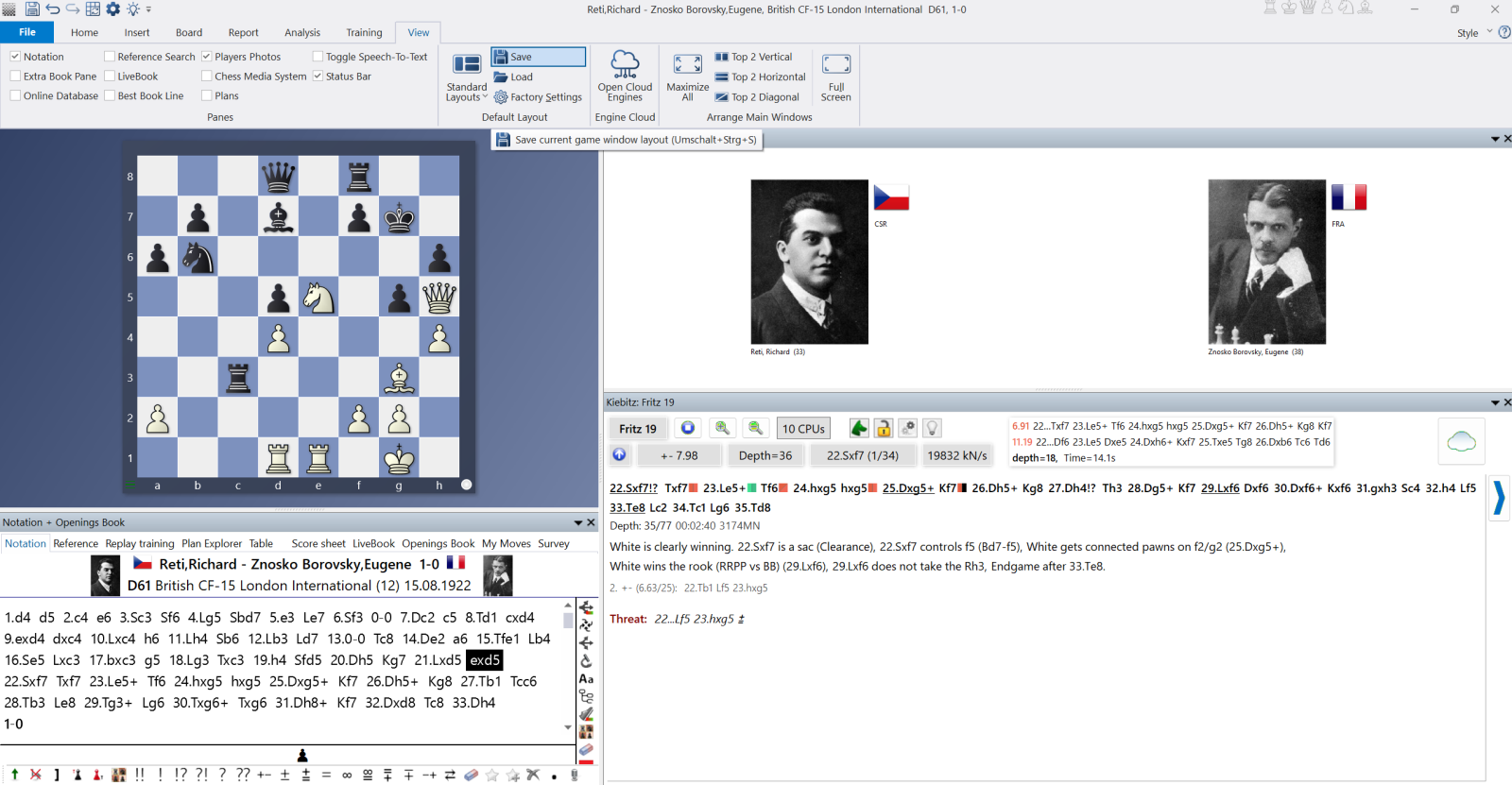
If you like this new version, you can save the layout and open it again at any time by clicking "Load Layout." If you don't like it (yet), you can continue to edit it or return to the original view by clicking "Reset All Settings."
Here are two more examples of how to arrange windows on the screen:
.png)
In this example, you can see the board at the top, with the notation and game data adjacent. The online database is active across the entire width below, divided into the move statistics and the game overview.
.png)
A three-column layout was chosen here. On the left is the "Book" window, allowing you to view the opening moves in detail. The board is located in the middle. On the right is the notation with the "Large Photos" layout option described above.
EXPAND YOUR CHESS HORIZONS
Data, plans, practice – the new Opening Report In ChessBase there are always attempts to show the typical plans of an opening variation. In the age of engines, chess is much more concrete than previously thought. But amateurs in particular love openings with clear plans, see the London System. In ChessBase ’26, three functions deal with the display of plans. The new opening report examines which piece moves or pawn advances are significant for each important variation. In the reference search you can now see on the board where the pieces usually go. If you start the new Monte Carlo analysis, the board also shows the most common figure paths.
------
ChessBase has developed over decades to become what it is now in its 2026 version. The program has countless options, which we will present here in small portions – so you can design your interface for pleasant daily use and keep learning about new options and how to use them to get the most out of ChessBase´26 and save time.
We hope that this tip will help you to have more fun and be more successful when using ChessBase´26. You can find more tips and hints on our support pages and FAQ pages.
All parts of the series and more links:
The free app from ChessBase! ChessBase Mobile has everything you need as a chess player on the go:
access your chess data in cloud databases - and 13 million games.
ChessBase Mobile has everything you need as a chess player on the go:
- Access the ChessBase online database - with more than 13 million games: search for players, positions, openings etc.
- Save your own games and analyses in cloud databases
- Synchronise your personal databases across all your devices
- Analyse your games with the built-in engine
- Live opening book: use the most comprehensive and up-to-date statistics for every opening position
- Access your opening repertoire in the cloud: create and edit your personal opening repertoire
- 300 opening overviews, with repertoire suggestions: get started with new systems!
- Practise opening variations with three modes.
- Advanced notation: add comments, symbols, variations, arrows and markings to your games
- Advanced sharing options: share games and positions via link, image, GIF, FEN or QR code
- PGN compatibility: upload and download games or databases as PGN files




.jpeg)